

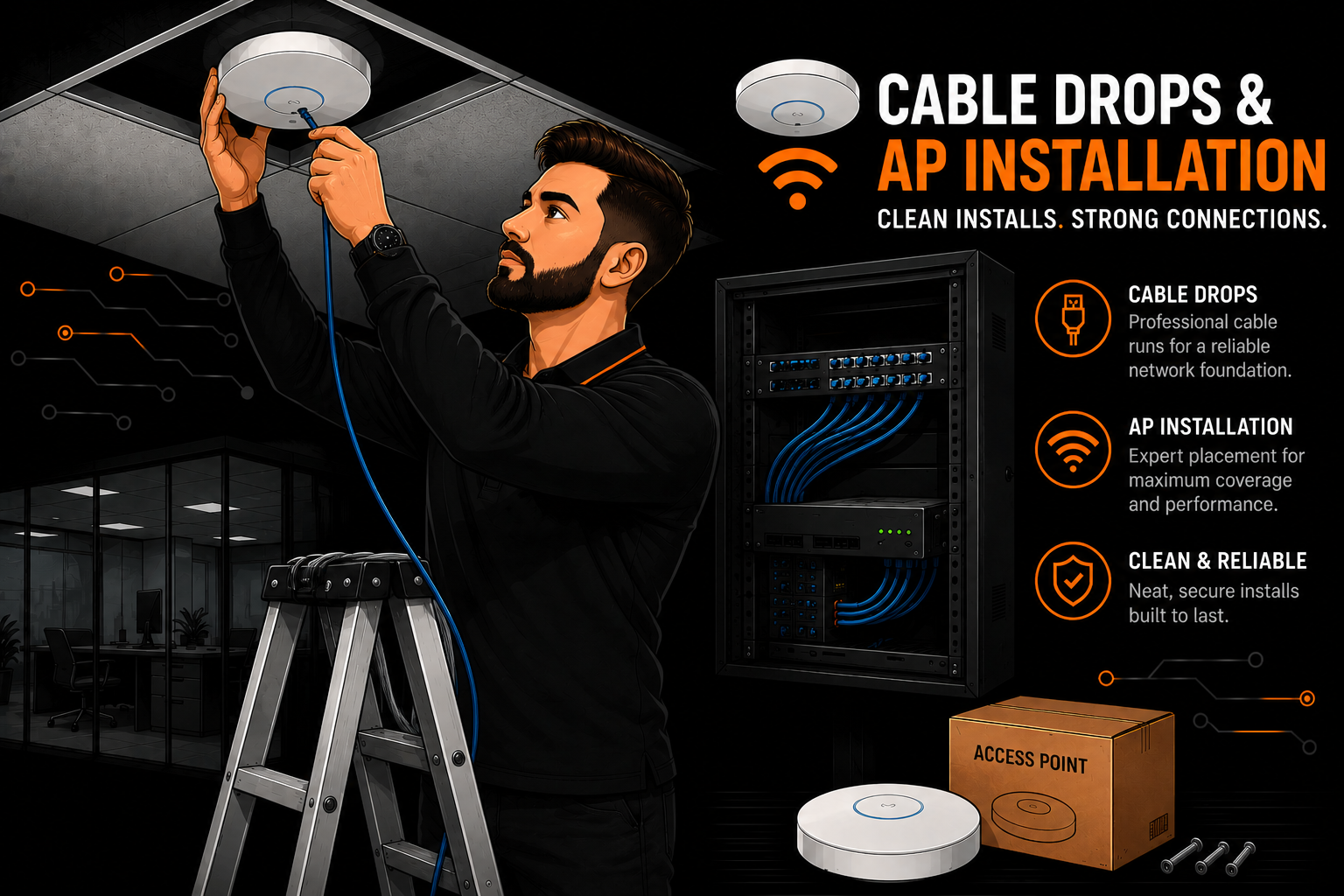

What Is an Access Point and How Does It Work?
An Access Point (AP) is a networking device that creates a wireless network by broadcasting Wi‑Fi signals to nearby devices. Think of it as a bridge between your wired network (LAN) and your wireless devices like phones, laptops, tablets, and smart home gear.
How It Works (Simple Breakdown)
- 1. Connects to your LAN: The AP plugs into your router or switch using an Ethernet cable. This gives it access to your network and internet.
- 2. Converts wired network → wireless signal: The AP uses built‑in radios and antennas to broadcast Wi‑Fi. Devices see the AP’s SSID (network name) and connect to it.
- 3. Handles wireless communication: The AP manages:
- Authentication (password/WPA2/WPA3)
- Signal strength
- Channel selection
- Data transfer between wireless devices and the wired network
- 4. Extends or improves coverage: Multiple APs can be installed across a home or office to create seamless coverage. They can share the same SSID so devices roam automatically.
In Plain English
An access point is like adding extra “Wi‑Fi doors” into your network. Instead of relying on one router to cover everything, APs let you place Wi‑Fi exactly where you need it — stronger, cleaner, and more reliable.
When Do You NEED an Access Point?
You should add an AP when:
- Your router’s Wi‑Fi doesn’t reach all rooms
- You have dead zones or weak signal areas
- You’re adding more devices than your router can handle
- You want enterprise‑grade features (VLANs, guest networks, roaming)
- You’re expanding into a garage, basement, shed, or outdoor area
- You’re building a homelab and want reliable wireless for VMs or test devices
If your network is growing — or your Wi‑Fi is struggling — an AP is the simplest, most effective upgrade.
Best Practices for Installing & Mounting APs
1. Choose the Right Location
Placement is everything. A powerful AP in a bad spot performs worse than a cheap AP in a good one.
- Mount centrally in the area you want to cover.
- Avoid corners, closets, and behind TVs — Wi‑Fi hates obstructions.
- Stay away from microwaves, thick walls, and metal surfaces.
- Ceiling or high‑wall mounting gives the best signal distribution.
2. Height Matters
APs radiate outward and downward. Mounting them:
- On the ceiling (ideal for offices and open spaces)
- High on a wall (great for homes)
- Above head level (minimum)
This reduces interference and improves coverage.
3. Use Ethernet for Backhaul
Always connect APs to your network using Ethernet. It provides:
- Maximum speed
- Zero interference
- Full reliability
If you can’t run Ethernet, consider a mesh system — but wired APs always outperform wireless mesh.
4. Power Options
Most APs support:
- PoE (Power over Ethernet) — cleanest, single‑cable install
- DC power adapters — fine for home setups
PoE is preferred because it avoids wall‑warts and lets you place APs anywhere.
Basic Configuration Steps (For Any Brand)
Once your AP is mounted and connected to your LAN, here’s how to configure it for everyday use.
1. Access the AP’s Management Interface
Usually done by:
- Visiting the AP’s IP address
- Using a controller (UniFi, Omada, Aruba Instant On, etc.)
- Running a setup wizard
2. Set Your SSID (Network Name)
Choose a clear, simple name:
- Home example: SmithHomeWiFi
- Office example: Office-WiFi
- Homelab example: LabNet
Avoid personal info like full names or addresses.
3. Choose Strong Security
Use:
- WPA2/WPA3 Personal for home
- WPA3 Enterprise only if you have RADIUS infrastructure
Never use WEP or “open” networks.
4. Set a Strong Passphrase
At least 12–16 characters. Avoid dictionary words. Use a mix of letters, numbers, and symbols.
5. Configure 2.4 GHz & 5 GHz Bands
Best practice:
- 5 GHz: Primary band for laptops, phones, streaming
- 2.4 GHz: For IoT devices, smart plugs, sensors
Use the same SSID for both unless you have special IoT needs.
6. Optimize Channel Selection
Let the AP auto‑select channels, or manually choose:
- 2.4 GHz: Channels 1, 6, or 11
- 5 GHz: Any non‑DFS channel for stability
Avoid channel overlap to reduce interference.
7. Enable Guest Network (Optional)
Guest networks should:
- Use a separate VLAN
- Block access to LAN devices
- Allow only internet access
This keeps your main network secure.
8. Update Firmware
Always update to the latest stable firmware for:
- Security patches
- Performance improvements
- Bug fixes
Final Thoughts
Installing an Access Point is one of the easiest ways to improve your network’s performance and reliability. With proper placement, a wired backhaul, and a clean configuration, you’ll get fast, stable Wi‑Fi that scales with your needs.
If you want, I can help you turn this into:
- A polished WordPress post
- A downloadable PDF guide
- A version tailored for homelabs, small businesses, or enterprise setups
Just tell me the style you want and I’ll shape it for your site.
